How to Extract Data from PDFs: 5 Efficient Ways in 2026
We have all been there: staring at a PDF invoice, manually typing numbers into an Excel spreadsheet, terrified of making a typo. In 2026, knowing how to extract data from PDFs effectively is a superpower for finance teams and developers alike. The Portable Document Format (PDF) was designed to preserve layout, not to share data. This makes extracting information from it notoriously difficult.
However, the landscape has changed. From simple copy-pasting to advanced AI pipelines, there are now scalable ways to unlock this data. This guide covers the most efficient methods to extract data from PDFs, helping you choose the right tool for your workflow.
Table of Contents
- 1. The Manual Copy-Paste Method
- 2. Traditional OCR Tools
- 3. Python and Coding Solutions
- 4. AI Automated Extraction (The Smart Way)
- 5. Automating Workflows with API
Quick Summary: Methods Comparison
| Method | Best For | Pros | Cons |
|---|---|---|---|
| Manual Entry | < 5 docs/month | Free | High error rate, slow |
| Traditional OCR | Scanned images | Digitizes text | Loses formatting/tables |
| Python/Code | Developers | Customizable | Requires maintenance |
| AI Extraction | Business/Finance | 99% Accuracy, Scalable | Cost (but high ROI) |
1. The Manual Copy-Paste Method
For one-off tasks, simply highlighting text and pasting it might suffice. However, PDFs often contain hidden formatting characters that break Excel cells. If you are trying to extract data from PDFs that contain tables, the columns often merge, requiring tedious cleanup.
While free, this method is unscalable. As we discussed in our article on data entry for finance teams, manual processes are the leading cause of reporting errors.
2. Traditional OCR Tools
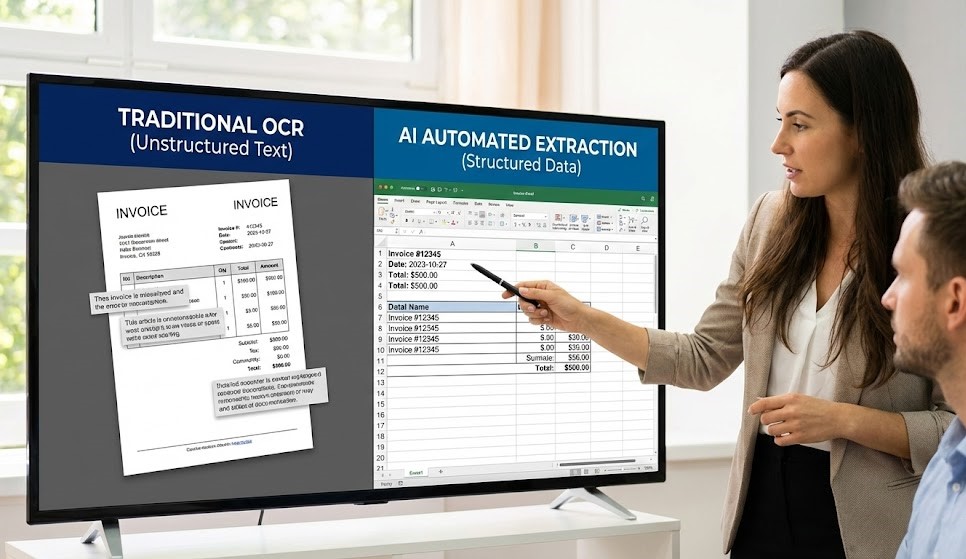
Optical Character Recognition (OCR) technology converts images of text into machine-encoded text. Tools like Adobe Acrobat perform this well for simple paragraphs. However, traditional OCR struggles with “structured data”—it sees a table as a bunch of words floating in space, not as rows and columns.
One major limitation when you try to extract data from pdfs using standard OCR is the “floating text” problem. The software might recognize the characters, but it lacks the logic to understand relationships. It sees “Total” and “$500” as separate entities, not as a key-value pair. This often forces teams to spend hours manually re-mapping data fields.

Pro Tip: Use Zonal OCR only if your document layouts never change. If vendors update their invoice design, Zonal OCR templates usually break and require reconfiguration.
3. Python and Coding Solutions
For developers, libraries like `PyPDF2`, `Tabula-py`, or `PDFMiner` offer a way to programmatically extract data from PDFs. This approach is powerful but fragile. You need to write specific logic for every document variation. Maintaining these scripts can become a full-time job.
If you prefer a low-code approach over writing scripts from scratch, consider checking our comparison of data automation platforms.
4. AI Automated Extraction (The Smart Way)
Modern businesses need reliability. AI-powered tools like ParserData use Large Language Models (LLMs) to understand the context of a document. They don’t just see pixels; they understand that “Total: $500” is a financial value.
This method allows you to extract data from PDFs regardless of layout changes. Whether it’s an invoice, a receipt, or a bank statement, the AI adapts automatically.
Traditional Extraction vs. AI Extraction
| Feature | Template-Based (Old) | AI-Powered (New) |
|---|---|---|
| Setup Time | Hours (Manual mapping) | Seconds (Auto-detect) |
| Layout Changes | Breaks workflow | Adapts automatically |
| Table Extraction | Often fails on multi-page | Preserves row/column logic |
Unlike legacy tools that rely on strict XY coordinates (Zonal OCR), modern AI reads the document like a human. It looks for context. For instance, if you need to extract data from pdfs containing complex line items that span multiple pages, AI understands where the table starts and ends automatically. This capability is critical for varying vendor invoice formats.
5. Automating Workflows with API
Extraction is only half the battle. Once you unlock the data, you need to move it. This is where API integration becomes crucial. Instead of downloading a CSV and uploading it to your ERP, you can create a seamless pipeline.
We have built a dedicated n8n workflow that allows you to automate the entire process: extracting data from an emailed PDF and saving it directly to Google Sheets.
🚀 Download Free n8n Workflow Template
Pro Tip: Always verify the “confidence score” returned by the API. If the score is below 80%, route the document for human review. This “human-in-the-loop” approach ensures 100% accuracy for critical financial records.
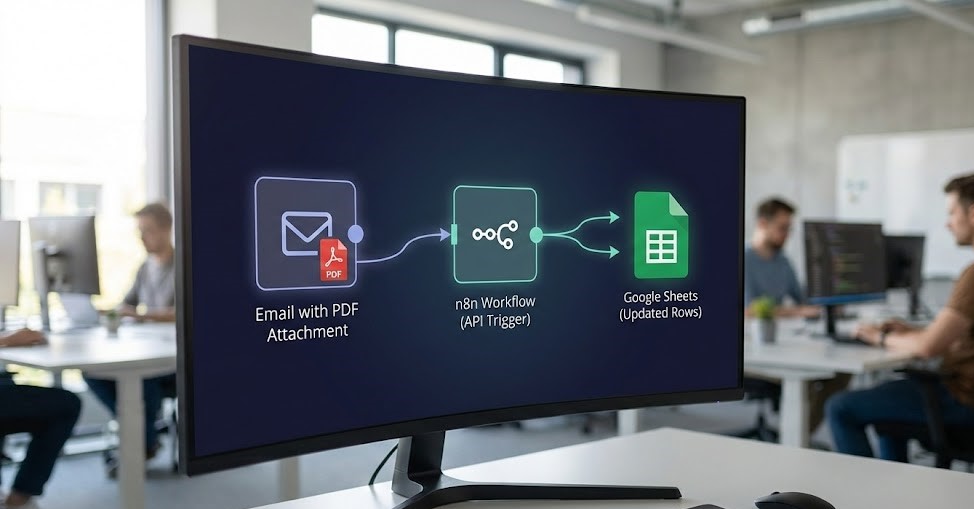
Consider a logistics company processing thousands of waybills. Relying on manual uploads creates a bottleneck. By integrating an API, they can extract data from pdfs the moment they hit the inbox. This real-time processing triggers payments and inventory updates instantly, significantly improving supply chain velocity.
Conclusion
Learning how to extract data from PDFs effectively is about choosing the right tool for the volume. While manual entry works for a hobbyist, businesses need scalable, AI-driven solutions. By switching to an automated platform like ParserData, you reduce costs, eliminate errors, and free up your team for strategic analysis.
Ready to stop typing? Try ParserData for free and experience the power of AI extraction.
Frequently Asked Questions
Can I extract data from scanned PDFs?
Yes, but you need a tool with OCR (Optical Character Recognition) capabilities. ParserData includes built-in OCR that handles scanned images and converts them into machine-readable text before extraction.
Is AI extraction better than templates?
Absolutely. Templates require you to define “zones” for every vendor layout. AI extraction understands the document’s context, so it works instantly on new layouts without any setup.
How do I automate PDF extraction to Excel?
The most efficient way is to use an automation platform. You can set up a workflow (using n8n or Zapier) that watches a Google Drive folder for new PDFs, sends them to ParserData, and adds the extracted rows to Excel automatically.
Is it secure to use online tools to extract data from PDFs?
Security is critical. While free online converters exist, they often lack encryption. When dealing with invoices or bank statements, always use a professional platform that guarantees data privacy when you extract data from PDFs.
Can I extract specific data fields like tables only?
Yes. You don’t need to parse the whole document. AI tools can be configured to focus solely on line items. This precision allows you to extract data from PDFs cleanly, ignoring irrelevant marketing text or legal footers.
Recommended
- Invoice Data Extraction API: 4 Powerful Steps to Master in 2026
- The Hidden Manual Invoice Processing Cost in 2026: A CFO’s Guide
- Data Automation Platforms Comparison: Top 4 Picks
- 7 Game-Changing Benefits of AI Analytics for Business
Disclaimer: All comparisons in this article are based on publicly available information and our own product research as of the date of publication. Features, pricing, and capabilities may change over time.