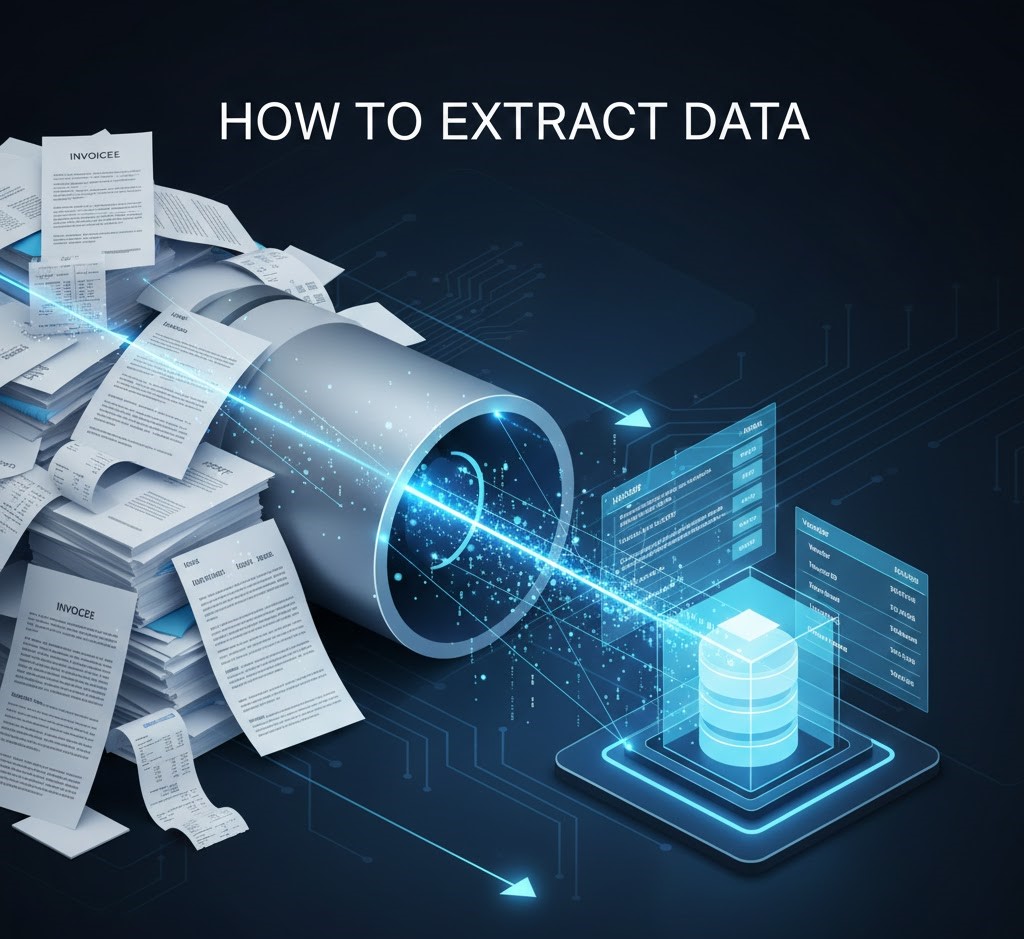
How to Extract Data from Documents: The Ultimate 2026 Guide
Every day, businesses generate 2.5 quintillion bytes of data. Yet, a massive portion of this value is trapped in unstructured formats: invoices, contracts, resumes, and forms. For modern organizations, the ability to unlock this information is not just a technical skill it is a competitive necessity. This brings us to the critical question: how to extract data from documents accurately, efficiently, and at scale?
According to IDC, organizations that analyze all relevant data and deliver actionable information achieve an extra $430 billion in productivity gains over their less analytical peers. But you cannot analyze what you cannot read.
In this master guide, we will move beyond the basics. We will explore how to extract data from documents using the latest AI technologies, comparing manual entry, template-based OCR, and next-generation Intelligent Document Processing (IDP). Whether you are a developer looking for an API or a CFO seeking ROI, this guide is your roadmap.
Table of Contents
- 1. The Problem: Why “Ctrl+C” Isn’t Enough
- 2. The 3 Evolution Stages of Extraction
- 3. Step 1: Audit Your Document Ecosystem
- 4. Step 2: Select the Right Technology
- 5. Step 3: Configure Your Extraction Schema
- 6. Step 4: Validation & Quality Control
- 7. Step 5: Integration & Automation
- 8. Technical Deep Dive: Handling Tables & Handwriting
- 9. Comparison: Python vs. No-Code Tools
- 10. Future Trends & Conclusion
1. The Problem: Why “Ctrl+C” Isn’t Enough
When you ask how to extract data from documents, you are essentially asking how to turn “unstructured” content into “structured” data.
A PDF invoice looks organized to a human eye. We see a table, a total, and a date. To a computer, however, a standard PDF is just a map of coordinates: “Place letter ‘T’ at X:100, Y:200”. It doesn’t know that ‘T’ is part of the word “Total”.
The “Dark Data” Challenge
This trapped information is called “Dark Data.” If you rely on manual copy-pasting, you face three risks:
- Scalability: You cannot hire enough humans to copy-paste 10,000 invoices a month.
- Accuracy: Humans have a 4% error rate. In finance, a typo in an invoice number creates reconciliation hell.
- Speed: Manual entry takes days. Automated extraction takes seconds.
Stop typing manually! Here is a real-world example of extracting document data in seconds 👇
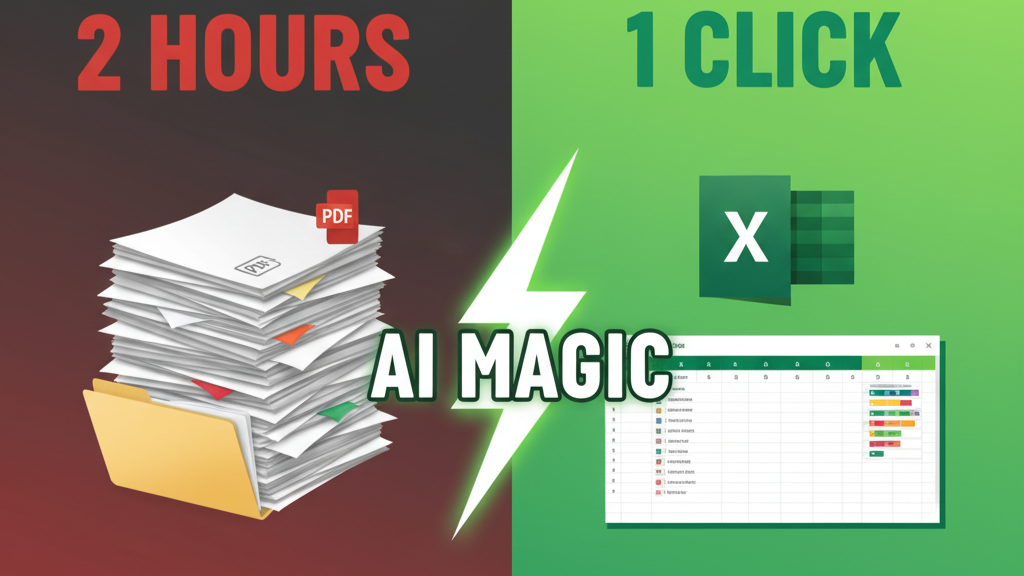
Learning how to extract data from documents using automation solves these problems, converting static files into a live stream of integrated data analytics.
2. The 3 Evolution Stages of Extraction
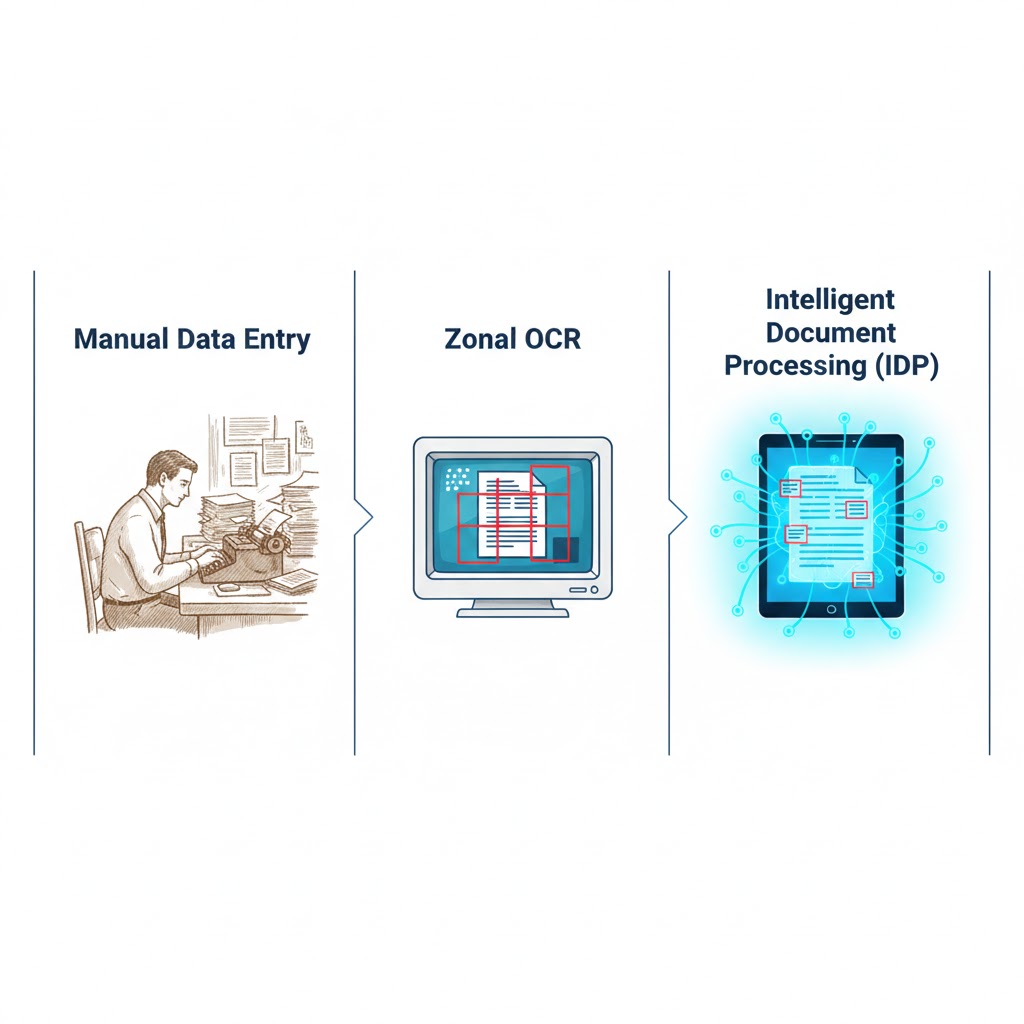
To understand how to extract data from documents effectively in 2026, you must know the tools available. We have evolved through three distinct eras.
Era 1: Manual Entry
- Method: Humans typing into Excel.
- Pros: High cognitive understanding (humans understand context).
- Cons: Slow, expensive, error-prone.
Era 2: Zonal OCR (Templates)
- Method: You draw a box on the screen and tell the software: “Read the text in this box.”
- Pros: Fast for fixed forms (like tax forms).
- Cons: Brittle. If the vendor moves their logo, the box reads empty space. This is a common pitfall when learning how to extract data from documents.
Era 3: Intelligent Document Processing (IDP)
- Method: AI and Machine Learning. The software reads the whole page and looks for the meaning. It finds “Total Amount” whether it’s at the top, bottom, or middle.
- Pros: Flexible, scalable, handles complex tables.
- Tools: Platforms like ParserData.
3. Step 1: Audit Your Document Ecosystem
The first practical step in learning how to extract data from documents is not buying software—it’s auditing your files. You cannot automate what you don’t understand.
Categorize by Variability
- Structured Documents: Fixed forms (W-2, Surveys). The layout never changes. Difficulty: Low.
- Semi-Structured Documents: Invoices, Purchase Orders, Receipts. The data is the same (Date, Total), but the layout varies by vendor. Difficulty: Medium.
- Unstructured Documents: Contracts, Emails, Letters. Dense text with no clear layout. Difficulty: High.
Pro Tip: Start by learning how to extract data from documents in the “Semi-Structured” category (like Invoices). This offers the highest ROI. (See our list of 25 types of business documents to automate).
4. Step 2: Select the Right Technology
Once you know what you are processing, you must choose how to extract data from documents.
- For Low Volume (<50/month): Manual entry or free online tools might suffice.
- For High Volume (>1000/month): You need an API-based IDP solution.
Why API First?
If you are building a scalable workflow, do not use desktop software. Use a cloud API. This allows your ERP or CRM to automatically send files for extraction and receive JSON back. Read more about the role of API in automation.
5. Step 3: Configure Your Extraction Schema
This is the most critical technical step. When defining how to extract data from documents, you must tell the AI exactly what you want. This is called a “Schema” or “Model.”
Defining Key-Value Pairs
You don’t want “all the text.” You want specific fields.
- Target:
Invoice Number| Type: String - Target:
Total Amount| Type: Number (Currency) - Target:
Issue Date| Type: Date (Normalized to YYYY-MM-DD)
The Taxonomy of Data
Be consistent. If one vendor calls it “Due Date” and another calls it “Payment Date,” your schema should map both to a single database field: payment_due_date. This standardization is the secret sauce of how to extract data from documents successfully across multiple vendors.
6. Step 4: Validation & Quality Control
Extracting data is easy; trusting it is hard. If you don’t know how to extract data from documents with validation gates, you risk polluting your database with bad data.
The Confidence Score
Modern AI tools like ParserData provide a “Confidence Score” (0-100%) for every field.
- Rule: If Confidence < 80%, route the document to a human for manual review (“Human-in-the-Loop”).
Logical Validation Rules
Don’t just rely on the AI. Use math to catch errors.
- Math Check: Does
Subtotal + Taxactually equalTotal? If not, flag the document. - Format Check: Is the “Invoice Date” in the future? Is the “Total” negative?
- Database Match: Does the extracted “Vendor Name” exist in your approved vendor list?
Implementing these rules is the difference between a toy project and an enterprise-grade solution for how to extract data from documents.
7. Step 5: Integration & Automation
The final step in understanding how to extract data from documents is moving the data from the “Extraction Layer” to the “Business Layer.”
Webhooks & APIs
You shouldn’t be downloading CSVs manually. Set up Webhooks.
- Trigger: An email arrives with a PDF.
- Action: The PDF is sent to the ParserData API.
- Callback: When extraction is done (seconds later), a Webhook pushes the JSON payload directly to your ERP (SAP, Oracle, NetSuite) or integration platform (Zapier, Make).
This creates a “Touchless Workflow” where humans only intervene when exceptions occur.
Quick Comparison: Which Method Fits Your Needs?
Deciding how to extract data from documents depends on your volume and complexity. Use this comparison to choose the right stack.
| Feature | Manual Entry | Zonal OCR (Templates) | Cognitive AI (IDP) |
|---|---|---|---|
| Setup Time | None (Start immediately) | High (Draw boxes for each vendor) | Low (Pre-trained models) |
| Accuracy | 96% (Human error) | 98% (If layout is fixed) | 99%+ (With validation) |
| Scalability | Very Low | Medium | Unlimited (Cloud) |
| Handling Variation | Excellent | Fails completely | Excellent (Context aware) |
| Best For | < 50 docs/month | Fixed Government Forms | Invoices, Receipts, Contracts |
Table: Comparing the three main approaches to data extraction.
Pro Tips for Extraction Success
Mastering how to extract data from documents requires more than just software. Follow these three golden rules used by enterprise data teams.
💡 Tip 1: Pre-process Your Images
Garbage in, garbage out. Before sending a scanned PDF to an OCR engine, apply “Binarization” (convert to black and white) and “Deskewing” (straighten the image). This simple step can boost accuracy by 20%.
💡 Tip 2: The “Confidence Threshold” Strategy
Don’t aim for 100% automation immediately. Configure your system to auto-approve any document with a confidence score > 95%. Route anything between 70-95% to a human reviewer. This balances speed with data integrity.
💡 Tip 3: Don’t hard-code logic for every vendor
Beginners often write code like
if vendor == "Amazon": look_at_row_5. This is a trap. Instead, use semantic models that look for the label “Total” near a currency symbol, regardless of the vendor. This makes your system resilient to new layouts.
8. Technical Deep Dive: Handling Tables & Handwriting
Most tutorials on how to extract data from documents skip the hard parts. Let’s cover them.
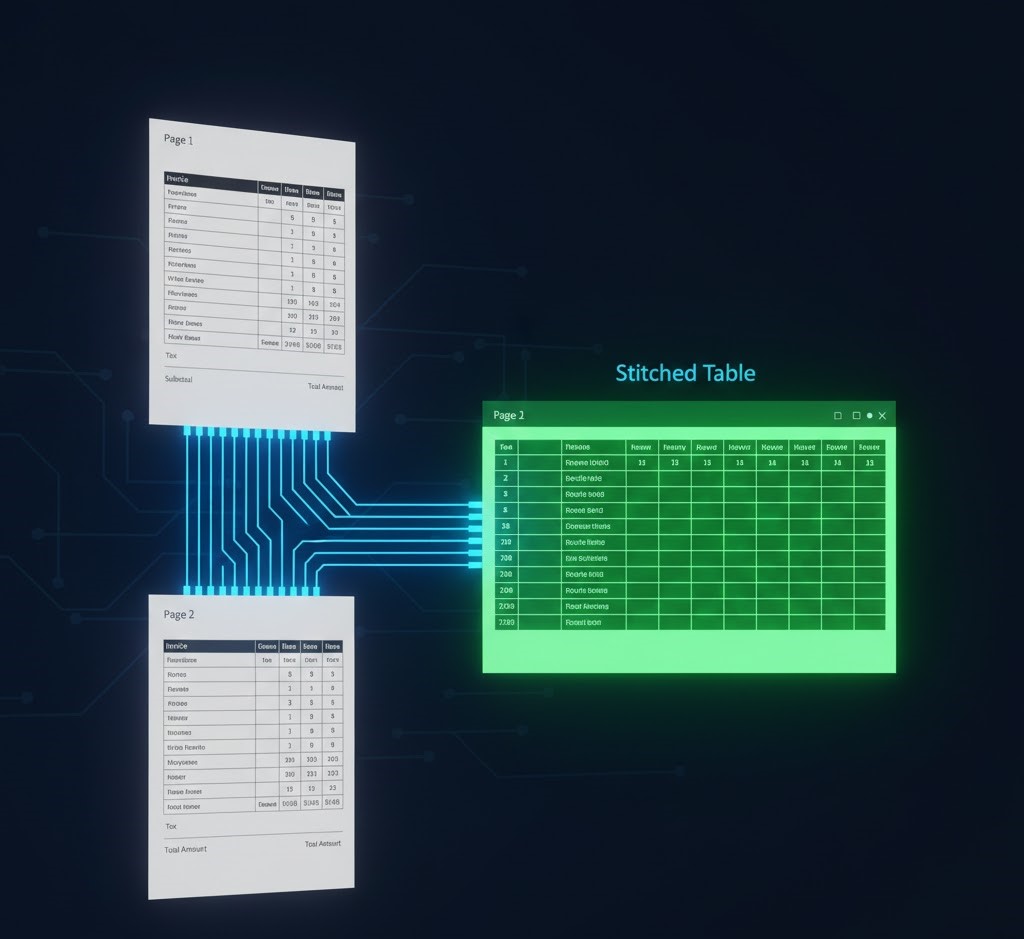
Parsing Multi-Page Tables
Tables often break across pages. The header is on Page 1, but the total is on Page 2.
- The Solution: Use extraction tools with “Table Stitching” capabilities. They identify the table structure (grid lines or whitespace) and merge rows from multiple pages into a single dataset.
Handwriting Recognition (ICR)
Standard OCR reads machine fonts. To read a handwritten signature or a waiter’s tip on a receipt, you need ICR (Intelligent Character Recognition).
- The Tech: ICR uses neural networks trained on millions of handwriting samples to decipher cursive script. This is essential for receipt scanning and medical forms.
9. Comparison: Python vs. No-Code Tools
For the developers reading this: should you build or buy? When deciding how to extract data from documents, you have two paths.
Path A: The Python DIY Route
You can use open-source libraries like PyPDF2, pdfplumber, or Tesseract.
pdfplumber
<pre class="wp-block-code"><code>
import pdfplumber
Basic extraction example
with pdfplumber.open(“invoice.pdf”) as pdf:
irst_page = pdf.pages[0]
text = first_page.extract_text()
print(text)
</code></pre>- Pros: Free, full control.
- Cons: You must write code to handle rotation, noise, table borders, and layout changes. Maintaining this for 100+ vendor layouts is a full-time job.
Path B: The API Route (ParserData)
- Pros: Pre-trained models. Handles rotation, handwriting, and tables out of the box. Setup takes minutes, not months.
- Cons: Cost per page (though usually cheaper than developer salaries).
Verdict: Use Python for learning how to extract data from documents. Use APIs for production business workflows.
10. Future Trends & Conclusion
The answer to how to extract data from documents is shifting from “Template Matching” to “Generative Understanding.”
By 2026, we are seeing the rise of “Zero-Shot Extraction,” where LLMs can read a document they have never seen before and answer questions like “What is the termination date?” without any prior training.
Summary Checklist
- Audit your files (Structured vs. Unstructured).
- Choose an AI-first tool like ParserData.
- Define your Schema (what fields you need).
- Validate with logic rules.
- Integrate via API.
Mastering how to extract data from documents is the key to unlocking the 80% of your business data that is currently going to waste. Stop typing. Start extracting.
Ready to automate? Start your free trial with ParserData.
Frequently Asked Questions
How to extract data from documents that are handwritten?
To extract handwritten data, you must use Intelligent Document Processing (IDP) tools with specialized ICR (Intelligent Character Recognition) engines trained on neural networks, as standard OCR will fail.
Can I use Python to learn how to extract data from documents?
Yes, Python libraries like PyPDF2 and Tesseract are great for learning how to extract data from documents for simple projects, but they struggle with complex, multi-page tables compared to enterprise AI APIs.
What is the most accurate way to extract data?
The most accurate method is AI-driven Cognitive Extraction combined with a “Human-in-the-Loop” validation step. This combines the speed of machines with human judgment for edge cases.
How to extract data from documents securely?
Ensure your extraction tool is SOC-2 and GDPR compliant. Use APIs that process data in memory without storing it permanently, especially for sensitive financial records.
How to extract data from PDF tables?
Extracting tables requires tools that support Table Parsing. These tools analyze the grid structure and whitespace to convert PDF rows into structured JSON or CSV arrays automatically.
Recommended
- 25 Types of Business Documents to Automate
- Why Integrate Data Analytics? The 2026 Explainer
- What Is Report Generation? The Ultimate Guide
- 7 Types of Financial Data Extraction
Disclaimer: All comparisons in this article are based on publicly available information and our own product research as of the date of publication. Features, pricing, and capabilities may change over time.